Showing posts with label Composite Picture. Show all posts

Thursday, February 18, 2016

Ghost in the Woods

Yesterday, two of my sons came over and visited with me.  We were talking about different things and one son asked could I replace faces in Photoshop.  Yes, I answered, so he said he will send me some pictures that he wanted to be adjusted.  On my computer screen appeared a photograph that I had taken down in the Savannah National Wildlife Refuge.  It is a scene with Spanish moss hanging from the trees that I converted to black and white.  Both sides thought that it was a great picture.  It would be great as a cover for a mystery/paranormal/horror book or movie.  The picture would look better if it had a ghostly figure in it.  Well, I do have a ghostly figure that I have used in a Halloween photo so I opened both of the photos in Photoshop.  I selected the ghostly figure and move it onto the landscape photo.  I adjusted the size of the ghostly figure and decreased the opacity and then, utilizing the clone stamp did a little blending.  All the sons loved the composite picture, so what do you think?  Let me know, I would appreciate it.

The Ghost in the Woods
Original

Monday, August 24, 2015

Laughing Gull and Whimbril-How I Made a Composite Picture

Composite Picture Laughing Gull and Whimbril
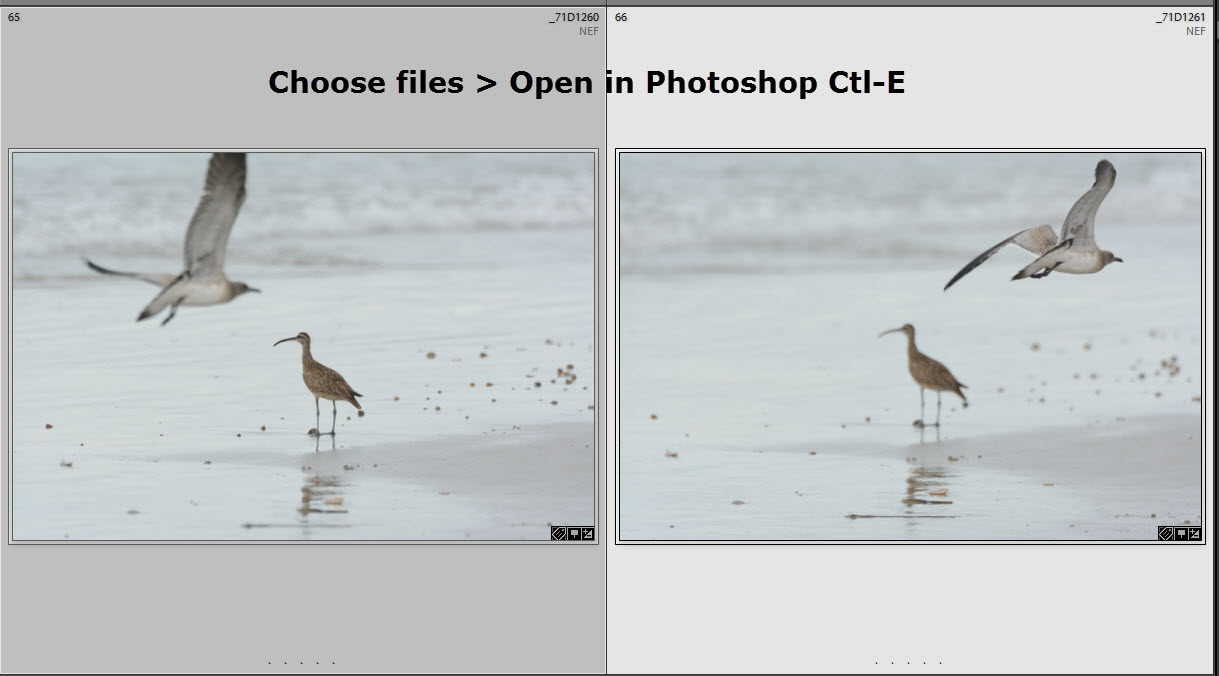
As I was reviewing my pictures from Horseneck beach that I took the other day, I notice two pictures with a juvenile laughing gull and a whimbril.  In one of the pictures, the whimbril was in focus and in the other picture, the gull was in focus.  
Original Picture. One
Original Picture Two
I thought it would be nice to have a picture with both birds in focus.  As an artist, I decided to create a composite picture that had both birds in focus.  First, in Lightroom, I made sure that the develop settings for both pictures with the same.  Next in the library module, in good view, I highlighted the two pictures and exported them into Photoshop.  Here is how I did it


If you need additional help, please email me and I will get back to you.

Using the coupon code mborn you will receive a 15% discount on any or all of the Topaz plug-ins.


Help Support my blog by purchasing from Amazon. Clicking on this link and utilizing the link does not cost you anything.
BUY FROM AMAZON

Sunday, November 3, 2013

How I Did It. Having Fun with Photoshop

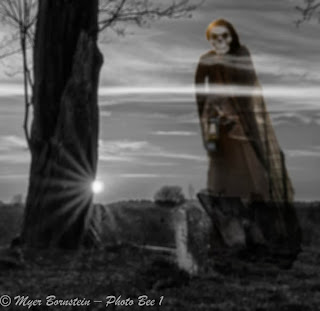
The other night was Halloween, and I wanted to create a picture suitable for the night.  I thought about it for a while, thinking do I want pumpkins like everybody else, or do I want to do something different.  I decided to do something different.  Here is how I did it.

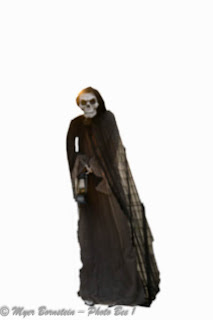
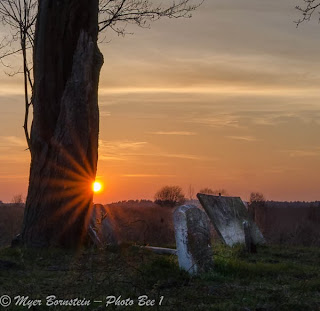
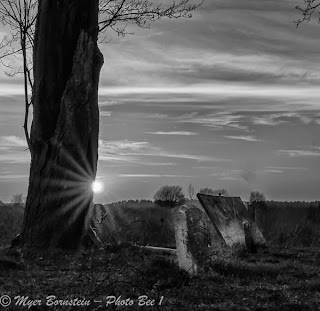
My neighbors in my condo building had a "Grim Reaper" hanging on their front porch.  I grabbed my camera and took a couple of pictures of it.  After importing it into Lightroom, I exported to edit the picture in Photoshop.  First, I needed to isolate the Grim Reaper from its background and I utilized the quick selection tool and the refined edge tool.  I then moved the selection to a separate layer.  Next, I went into my files in Lightroom and found a cemetery picture that I had converted to black and white.  I then opened that also into Photoshop.  Next, in Photoshop on the Windows setting > Arrange > Float All in Windows.  Now that I had both pictures open, first I selected the Grim Reaper and blurred it slightly.  Using the move tool.  I then moved to Grim Reaper to the cemetery picture.  However, it was too large initially, so I removed it from the picture and then downsides the Grim Reaper, so it would fit better in the cemetery picture.  I then brought the Grim Reaper back into the cemetery picture lower the opacity, and turned on the overlay setting and adjusted it to where I wanted it, and that the underlying tombstone would standout.  I then did a slight blur on the whole picture, flatten the levels and got my final picture.  What do you think about the result?
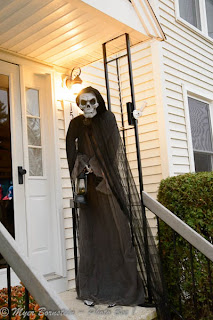
Original picture
Picture after utilizing the quick selection tool and placing the picture in a new layer
Original picture
Converted to black and white
Happy Halloween