Showing posts with label Photoshop. Show all posts

Thursday, February 18, 2016

Ghost in the Woods

Yesterday, two of my sons came over and visited with me.  We were talking about different things and one son asked could I replace faces in Photoshop.  Yes, I answered, so he said he will send me some pictures that he wanted to be adjusted.  On my computer screen appeared a photograph that I had taken down in the Savannah National Wildlife Refuge.  It is a scene with Spanish moss hanging from the trees that I converted to black and white.  Both sides thought that it was a great picture.  It would be great as a cover for a mystery/paranormal/horror book or movie.  The picture would look better if it had a ghostly figure in it.  Well, I do have a ghostly figure that I have used in a Halloween photo so I opened both of the photos in Photoshop.  I selected the ghostly figure and move it onto the landscape photo.  I adjusted the size of the ghostly figure and decreased the opacity and then, utilizing the clone stamp did a little blending.  All the sons loved the composite picture, so what do you think?  Let me know, I would appreciate it.

The Ghost in the Woods
Original

Saturday, November 21, 2015

Continuing My Old Catalog File Cleanup

Gila Woodpecker - original NEF file
Gila Woodpecker - original TIF file
Gila Woodpecker - PSD file with Topaz plug-ins
I have been continuing reviewing older pictures in my catalog and found a great deal of them have not been adequately keyworded, especially to what species they are.  I have also started to reprocess a number of pictures, utilizing what I have learned over the years.  I am going to presents some pictures from 2012 with various processing.  This will range from the original right out of the camera to how I processed some now in 2015, utilizing Lightroom, Photoshop, and Topaz plug-in.
Great-tailed Grackle  - original NEF file
Great-tailed Grackle  - processed 2012, TIF file with halo around the bird
Great-tailed Grackle  - process 2015, PSD file with Topaz plug-ins


Monday, November 9, 2015

Do Not Forget to Review Older Pictures in Your Catalog

A question for my readers.  How many of you go back and review all the pictures in your catalog? The reason I ask is that last year I wrote a blog about processing some older pictures as I was going through my catalog and keywording pictures.  http://photobee1.blogspot.com/2014/03/more-photographs-from-past.html

Since the last few days I have not been feeling up to snuff, I decided to go back and look at all the pictures from 2010.  I found a number of pictures that I had processed, but on new inspection.  I really did not like the way they looked.  Since I do have the original raw file I decided to reprocess a number of the pictures, utilizing all the new techniques that I have learned plus the improvements that have occurred in Lightroom and ACR.

I also found pictures that I forgot I had or that should have been published previously.  It has been enjoyable doing this and here are some of the new results.

Great blue heron diving for food
Marbled Godwit with Mole Crab in Its Beak
River Otter
Black-Tailed Deer
Crested Guan
Savannah National Wildlife Refuge
Wild Turkeys Running in the Snow in My Backyard
Dot-tailed Whiteface Dragonflies Mating
Grayish Saltator
Wood Stork Landing at Nest


Sunday, November 1, 2015

Experimenting

Went out to Gooseberry to see what we could find.  All three of the scoters were present out in the day, however, they were too far away to photograph.  There were a number of different sparrows around plus out at the tip of Gooseberry Savannah sparrows.  Just prior to our reaching the tip a large flight of shorebirds flew by, which disappointed me because usually at the tip is a great place to photograph shorebirds.  The reason was a gentleman was walking his three dogs, which cause the shorebirds to evacuate.

There was an interesting stand of driftwood out at the tip which I photographed.  When I looked at the driftwood on the computer screen, it was a very bland picture.  So I decided to have some fun experimenting.  First, I adjusted the picture in Lightroom and exported the adjusted picture to Photoshop.  While in Photoshop.  I cleaned up the background, replace the background with a texture, added a little bit of impressionistic painting and then did some selective adjustments of the color.  Here is before and after.
Driftwood after Lightroom Processing
Driftwood after Photoshop and Topaz Processing
Yellow-rumped warblers were present.  One of the warblers posed out in the open, allowing clear shots of it, but, the background was very busy.  So again back in the computer.  I adjusted the picture in Lightroom and in Photoshop and then replaced the background with a green background photograph that I had taken.  Again, here is the before and after.  Which one do you like better?
Yellow-rumped Warbler
Yellow-rumped Warbler with Background Replaced
One yellow-rumped warbler kept flying off of branches turning around and catching small insects that were in the air.  I was happy to get a single image of the warbler performing.  I would love to have the warbler looking toward the camera, but I was happy to get a single clear picture.
Yellow-rumped Warbler Catching Flies Showing Its Yellow Rump
Not to start a controversy, I believe that a photographer is also an artist, and can adjust photographs to please himself/herself.  That is what I used to do in the darkroom, the same as AnselAdams and other old great photographers.  He yes, now we do it on the computer using a digital darkroom.  Now, if the photograph is supposed to be documentary or for the news, then no great manipulations should be performed.  Please reply on the blog what your thoughts are in this matter.

Monday, August 24, 2015

Laughing Gull and Whimbril-How I Made a Composite Picture

Composite Picture Laughing Gull and Whimbril
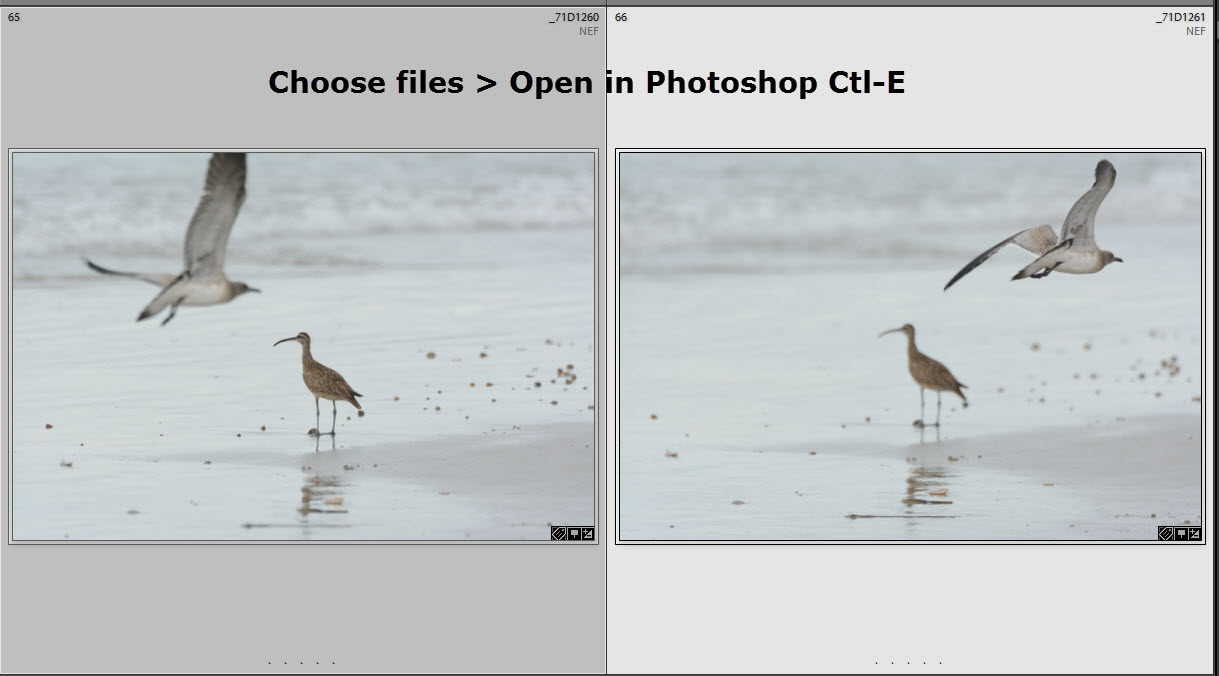
As I was reviewing my pictures from Horseneck beach that I took the other day, I notice two pictures with a juvenile laughing gull and a whimbril.  In one of the pictures, the whimbril was in focus and in the other picture, the gull was in focus.  
Original Picture. One
Original Picture Two
I thought it would be nice to have a picture with both birds in focus.  As an artist, I decided to create a composite picture that had both birds in focus.  First, in Lightroom, I made sure that the develop settings for both pictures with the same.  Next in the library module, in good view, I highlighted the two pictures and exported them into Photoshop.  Here is how I did it


If you need additional help, please email me and I will get back to you.

Using the coupon code mborn you will receive a 15% discount on any or all of the Topaz plug-ins.


Help Support my blog by purchasing from Amazon. Clicking on this link and utilizing the link does not cost you anything.
BUY FROM AMAZON

Wednesday, May 13, 2015

How to Combine Photos Using Light Room and Photoshop

I had photographed a Drake Mallard by some dandelions and it had its mouth open, however, I cut its feet off.  Thank God, the next picture, I did not cut the feed off, however, the mallards mouth was closed.  I decided to utilize Photoshop to see if I could combine the pictures and I was able to get the head with its mouth open on the body that had the feet showing.

Here are my steps:
First, I selected both images.  Then processed one of the image and then sync the settings with the other image Step two -   In the Photo Menu >Edit In > Open  as Layers in Photoshop.


Step three  -  now in Photoshop highlight both of the images, in the Edit Menu >  Auto-Align Layers.  Choose Auto then click OK.


Step four  -  you now have your image aligned with the head with the open mouth on the body that has the feet.  Finally crop the image and save it back into Lightroom.

I hope this brief tutorial gave you some ideas, and let me know if you tried it and it worked.


Using the coupon code mborn you will receive a 15% discount on any or all of the Topaz plug-ins.


Help Support my blog by purchasing from Amazon. Clicking on this link and utilizing the link does not cost you anything.
BUY FROM AMAZON

Friday, April 10, 2015

A Short Discussion about Post Processing

I am a believer in post-processing.  In fact, over the last few years both light room and Photoshop with each induration have gotten better and post-processing.  What also helps is the number of different plug-ins that are available, including those from Topaz, NIK, OnOne and others.  Along with a good number of free information that is available on the web.

I am going to show you two sets of pictures that was taken just after sunset, utilizing a Nikon D7100, Nikkor 500 mm f/4 plus a 1.7 X converter on a tripod.  The settings were 1/100 second,f/5.6 and ISO 3200.  As you look at the pictures before the post-processing you will see that there is a large amount of noise and the pictures.  After post-processing, utilizing both light room and Photoshop, Topaz Clarity and Detail .  I then selected out the backgrounds into a separate layer and utilized DeNoise to decrease the noise.  Then I used a technique from Denise Ippolito and Artie Morris using surface blur to finish up the picture.

In the next blog.  I will take you step-wise in the process that I use.

 Barn Owl (Tyto alba) 

Original
Post-Processed
Original
Post-Processed


Using the coupon code mborn you will receive a 15% discount on any or all of the Topaz plug-ins.


Help Support my blog by purchasing from Amazon. Clicking on this link and utilizing the link does not cost you anything.
BUY FROM AMAZON